Access Applications in CMX Environments
This topic explains how to access applications that you install in Replicated Compatibility Matrix (CMX) environments, including clusters or virtual machines (VMs). It includes information about exposing ports as well as other ingress and networking options.
Expose Ports on VMs
You can expose ports on a VM and make them accessible on the public internet. For information about exposing ports using the CLI, see replicated vm port expose.
Limitation
Creating wildcard DNS entries for VMs is not supported. For feedback, contact Replicated support.
To expose ports settings for a VM:
-
In the Vendor Portal, go to Compatibility Matrix.
-
Create a VM.
-
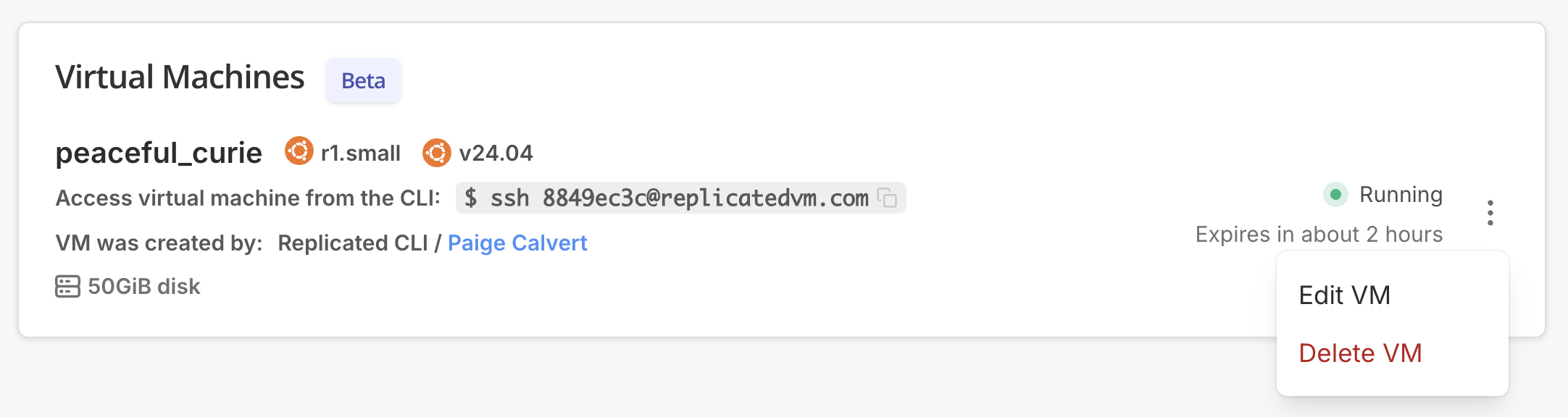
Open the dot menu for the VM and click Edit VM.
-
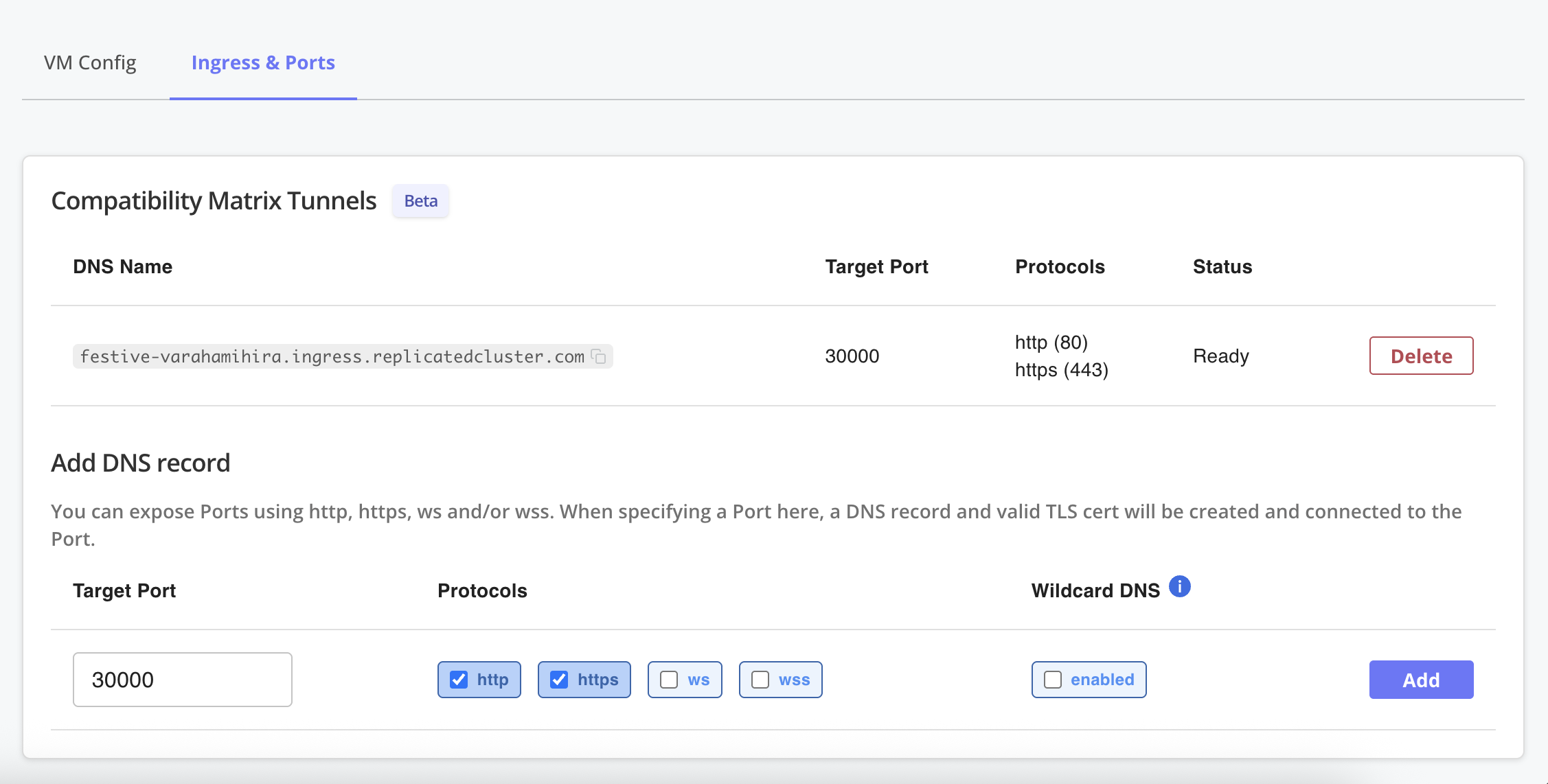
Under Ingress & Ports, for Add DNS record, edit the fields as desired and click Add to create a DNS record.
 View a larger version of this image
A DNS record and valid TLS cert are created and connected to the specified port.
Expose Ports on VM-Based Clusters
After you have a node port available on the cluster, you can expose the node port to the public internet using the Replicated CLI. There is no limit to the number of tunnels you can create for a cluster and multiple tunnels can connect to a single service.
You can expose a node port that does not yet exist in the cluster. This is useful if you have a deterministic node port, but need the DNS name as a value in your Helm chart.
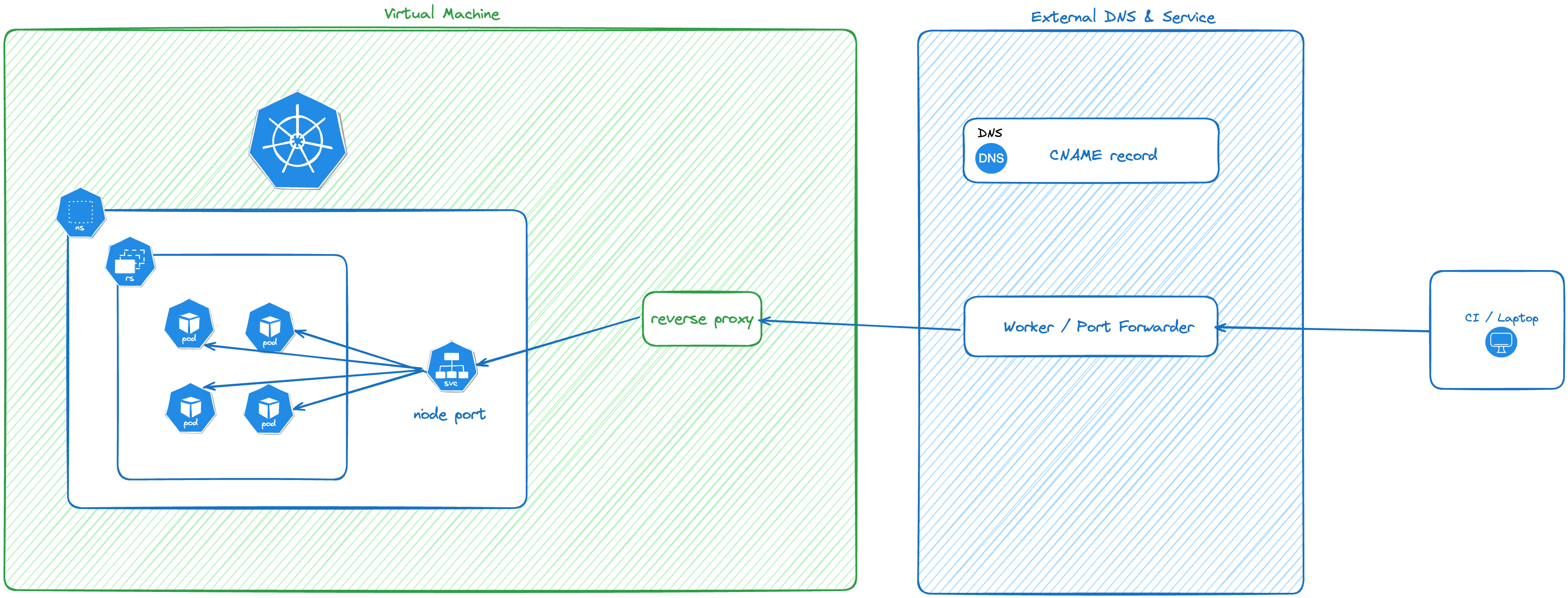
The following diagram shows how the traffic is routed into the service using CMX tunnels:
View a larger version of this image
Limitations
- A tunnel can only connect to one service. If you need fanout routing into different services, consider installing the nginx ingress controller as a
NodePortservice and exposing it. - Tunnels are not supported for cloud distributions (EKS, GKE, AKS).
Supported Protocols
A tunnel can support one or more protocols. The supported protocols are HTTP, HTTPS, WS and WSS. GRPC and other protocols are not routed into the cluster.
Expose Ports with the CLI
To expose a port on a cluster using the Replicated CLI:
replicated cluster port expose \
    [cluster id] \
    --port [node port] \
    --protocol [protocol]
See cluster port.
Use Wildcard DNS
Optionally, you can specify the --wildcard flag to expose this port with wildcard DNS and TLS certificate.
This feature adds extra time to provision the port, so it should only be used if necessary.
For example, if you have the nginx ingress controller installed and the node port is 32456:
% replicated cluster ls
ID          NAME                           DISTRIBUTION    VERSION       STATUS
1e616c55    tender_ishizaka                k3s             1.29.2        running

% replicated cluster port expose \
    1e616c55 \
    --port 32456 \
    --protocol http \
    --protocol https \
    --wildcard
Remove Ports
Exposed ports are automatically deleted when the cluster or VM terminates.
If you want to remove a port (and the associated DNS records and TLS certs) prior to termination, run the replicated port rm subcommand with the cluster or VM ID:
replicated cluster port rm PORT_ID --id CLUSTER_ID
replicated vm port rm VMID_OR_VMNAME
You can remove just one protocol, or all. Removing all protocols also removes the DNS record and TLS cert.
About Other Cluster Networking Options
After deploying your application into CMX clusters, you will want to execute your tests using your own test runner. In order to do this, you need to access your application. CMX offers several methods to access your application.
Some standard Kubernetes networking options are available, but vary based on the distribution. For VM-based distributions, there is no default network route into the cluster, making inbound connections challenging to create.
Port Forwarding
Port forwarding is a low-cost and portable mechanism to access your application. Port forwarding works on all clusters supported by CMX because the connection is initiated from the client, over the Kubernetes API server port. If you have a single service or pod and are not worried about complex routing, this is a good mechanism. The basic steps are to connect the port-forward, execute your tests against localhost, and then shut down the port-forward.
LoadBalancer
If your application is only running on cloud services (EKS, GKE, AKS), you can create a service of type LoadBalancer.
This will provision the cloud-provider specific load balancer.
The LoadBalancer service will be filled by the in-tree Kubernetes functionality that's integrated with the underlying cloud provider.
You can then query the service definition using kubectl and connect to and execute your tests over the LoadBalancer IP address.
AKS clusters require the following additional annotations to be set on LoadBalancer services for traffic to be routed:
controller.service.externalTrafficPolicymust be set toLocalservice.beta.kubernetes.io/azure-load-balancer-health-probe-request-pathmust be set to a health check endpoint that returns a successful HTTP response when your service is ready
For more information about these annotations, see the Use a public standard load balancer in Azure Kubernetes Service (AKS) in the Azure documentation.
Ingress
Ingress is a good way to recreate customer-representative environments, but the problem still remains on how to get inbound access to the IP address that the ingress controller allocates.
Ingress is also not perfectly portable; each ingress controller might require different annotations in the ingress resource to work properly.
Supported ingress controllers vary based on the distribution.
CMX supports ingress controllers that are running as a NodePort service.
CMX Tunnels
All VM-based CMX clusters support tunneling traffic into a NodePort service.
When this option is used, Replicated is responsible for creating the DNS record and TLS certs.
Replicated will route traffic from :443 and/or :80 into the NodePort service you defined.